If your team works with LinkedIn Sales Navigator lead links, the real challenge is usually not finding leads. It is what happens next.
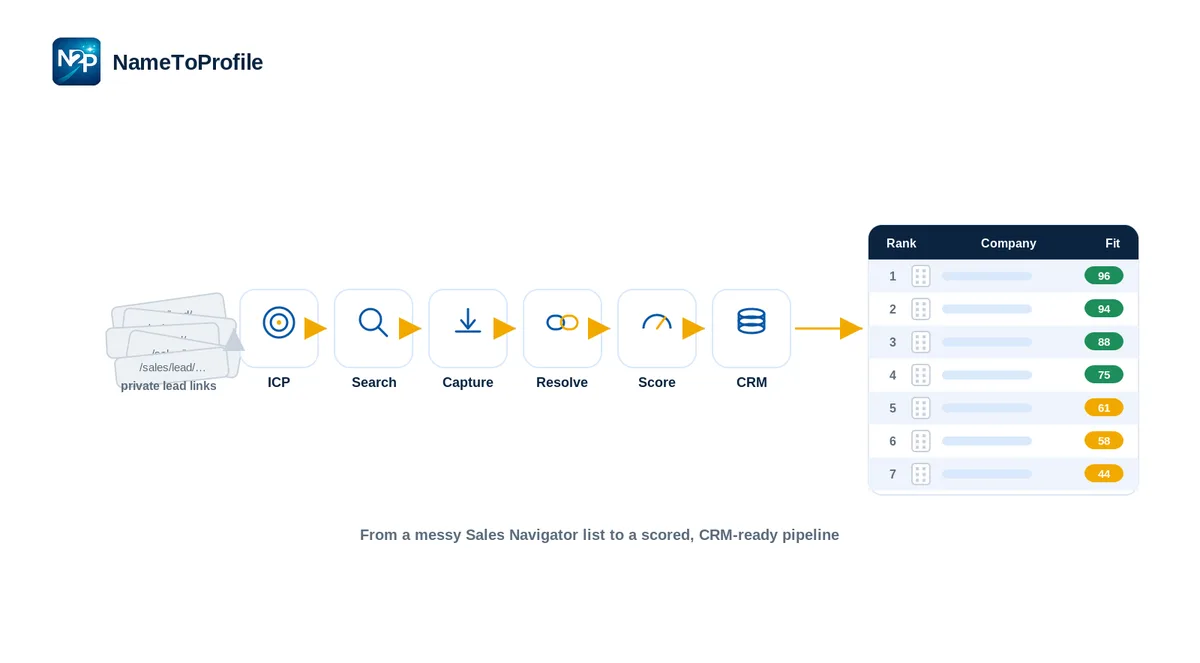
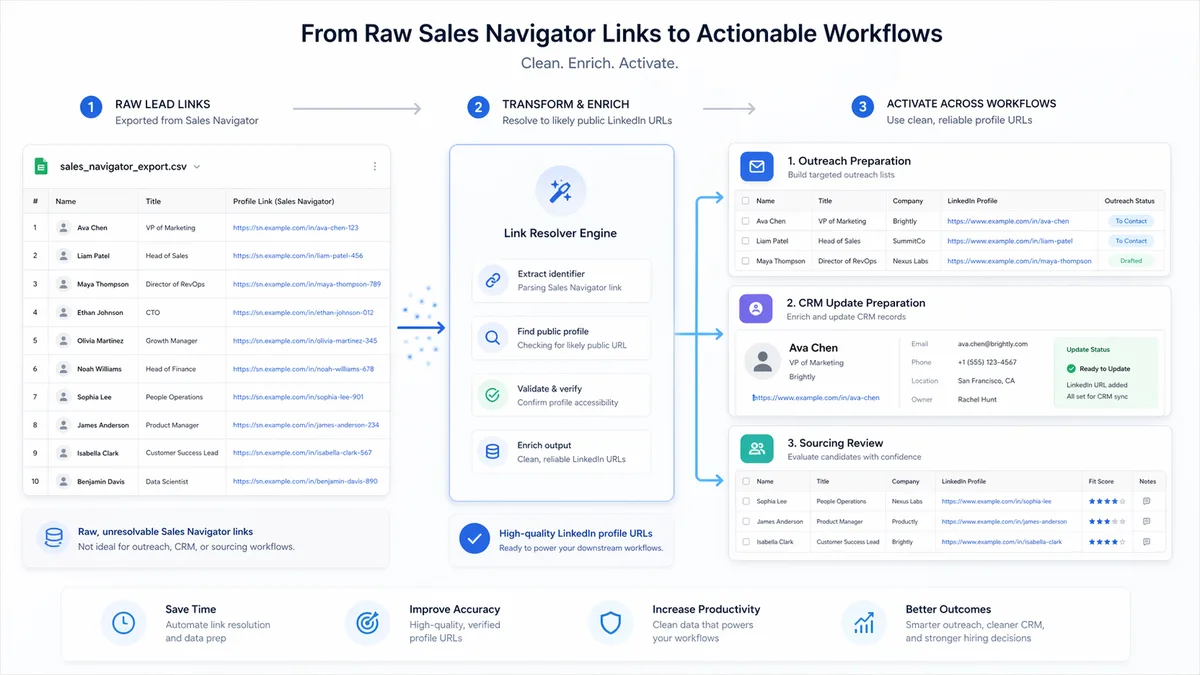
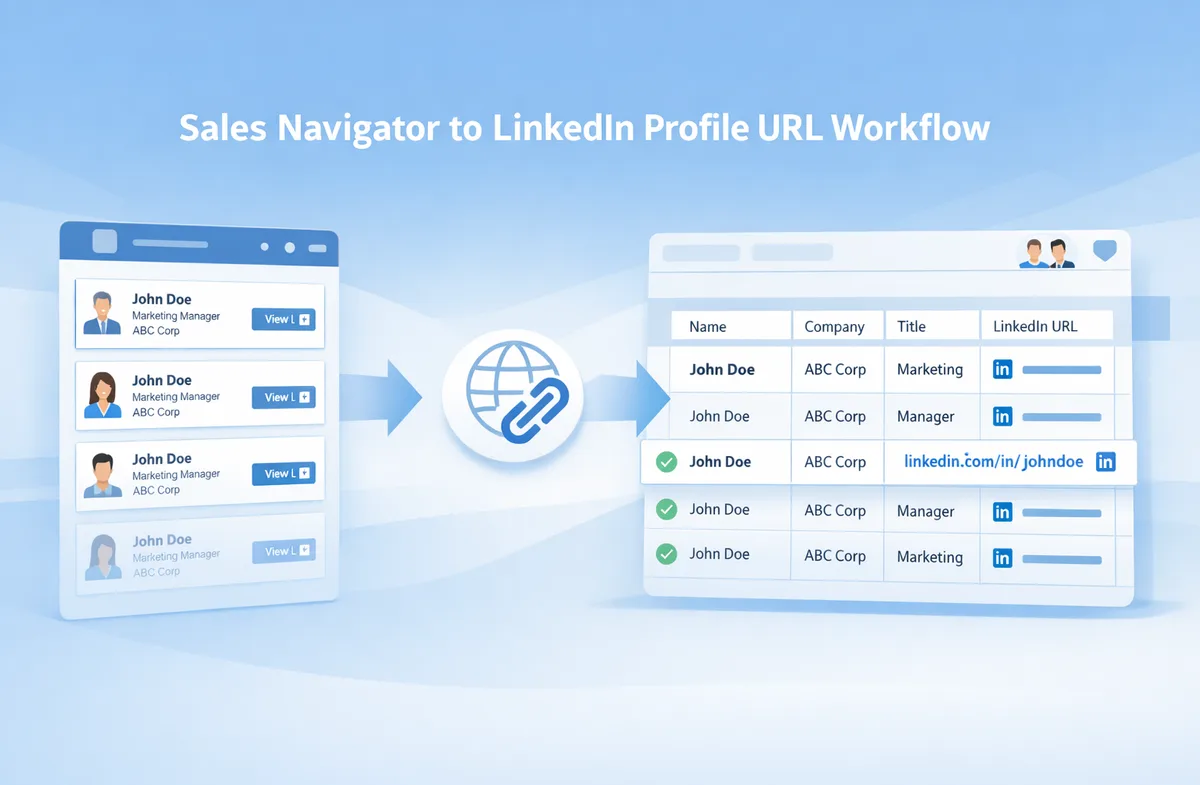
In many teams, someone has to open lead records one by one, wait for the page flow, identify the likely public LinkedIn profile URL, copy it, and move that result into a spreadsheet, review file, outreach workflow, or internal handoff. That process is manageable once or twice. It becomes slow and repetitive when it happens across dozens or hundreds of records. NameToProfile is built around reducing that kind of manual workflow friction by helping teams convert Sales Navigator lead links into likely public LinkedIn profile URLs that are easier to use downstream.
That does not mean every team should use the same workflow.
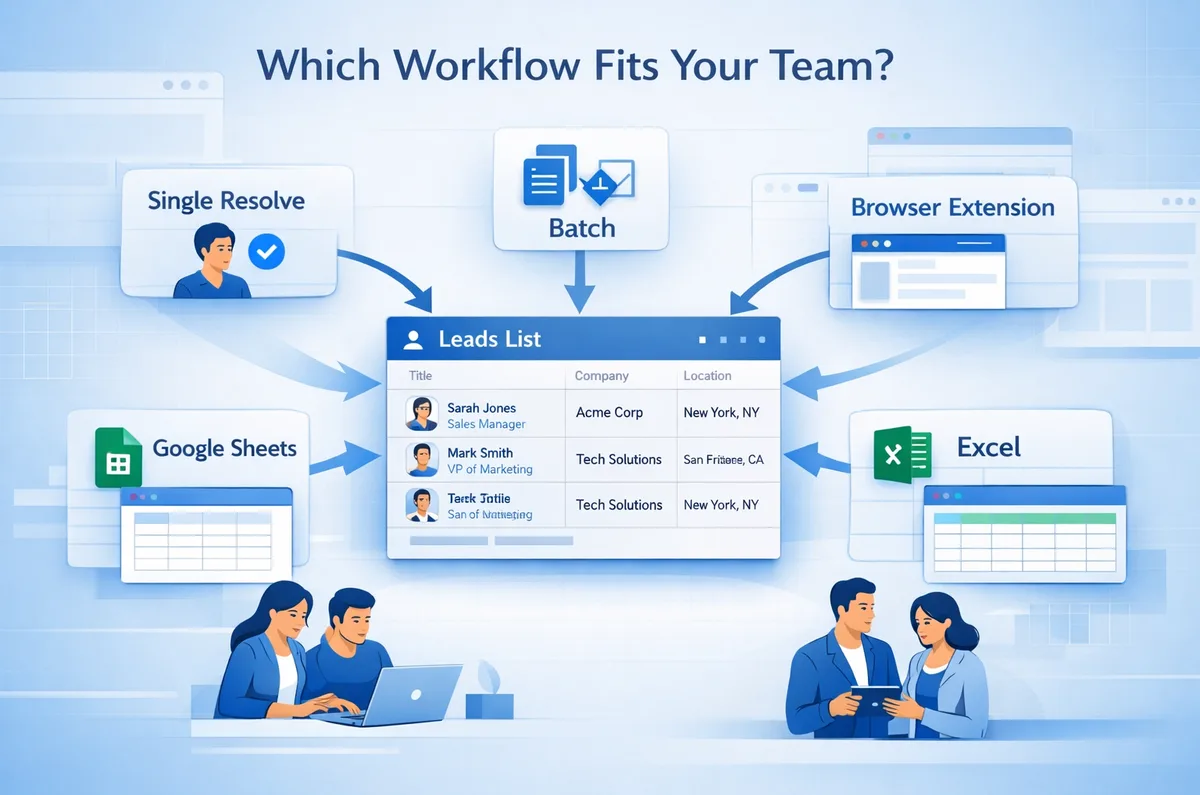
Some teams need a quick one-off lookup. Others need a batch process for recurring list prep. Some live in Google Sheets. Others still run operations inside Excel. Some want to stay in the browser while researching leads.
The best workflow is the one that matches how your team already works. This guide compares Single Resolve, Batch Resolve, Google Sheets, Excel, and browser extension workflows so you can choose the option that fits your process, volume, and team habits.
The real decision is about workflow fit, not just features
When teams compare workflow options, they often start by asking which method is fastest or most convenient. That matters, but it is not the whole decision.
A better question is this: Where does your team actually do the work?
For some teams, the bottleneck shows up during live prospecting. For others, it appears during spreadsheet cleanup, client delivery prep, recruiter review, or CRM preparation. The right setup depends on whether you are handling one lead at a time, processing large lists, collaborating in shared sheets, or supporting a more structured ops workflow. NameToProfile supports multiple workflow types for exactly this reason. It is intended to fit operational reality rather than force one rigid process.
In practice, choosing the right format comes down to a few factors:
- how many records you process
- whether the task is occasional or recurring
- whether the work happens in-browser or in spreadsheets
- whether one person is doing the work or handing it off to others
- whether the output needs to sit inside an existing operational file
Those factors matter more than preference alone.
What each workflow is designed for
Single Resolve
Single Resolve is designed for processing one lead at a time. It is best for quick checks, occasional lookups, testing, and small-volume tasks where using a larger batch workflow would be unnecessary.
Batch Resolve
Batch Resolve is designed for processing many lead links together. This is where workflow efficiency becomes more obvious for teams handling repeated list preparation, agency delivery work, recruiter sourcing lists, or outbound prospecting at scale.
Browser Extension
The browser extension is designed for users who work directly in a browser-based flow and want conversion support closer to their day-to-day prospecting or research process. It is best understood as a convenience layer that reduces switching between tools.
Google Sheets
The Google Sheets workflow is designed for teams that already manage lead lists in collaborative spreadsheets. It helps users work directly in the sheet, keep outputs in nearby columns, and maintain a workflow that is easy to filter, review, and hand off.
Excel
The Excel workflow serves teams that run prospecting, review, reporting, or operations files in Microsoft Excel. It fits environments where Excel remains the working system for QA, list prep, or structured desktop-based workflows.
When Single Resolve is the right choice
Single Resolve is the best option when the task is small and immediate.
A recruiter reviewing a shortlist may only need to check a few leads. An SDR may want to confirm one profile before moving on. A sales manager may need a quick manual spot check during list review. In these cases, the work does not justify setting up a larger process.
This workflow makes sense when:
- you are processing low volumes
- the work is occasional rather than recurring
- speed matters more than process design
- you are testing the workflow before using it more broadly
Single Resolve is especially practical for quick checks because it still removes the awkward open-copy-paste sequence from a one-off task. The value is modest per record, but useful when the goal is simply to get a result without extra handling.
Where Single Resolve starts to break down is repetition.
If the same person is doing that “quick check” fifty times in a row, it is no longer a quick check. It is a manual process hiding inside a lightweight interface. That is usually the signal that the team should move to batch or spreadsheet-based workflows instead.
When Batch Resolve is the right choice
Batch Resolve is the right choice when the work is repeated often enough that manual handling becomes a drag on the team.
This is common in agencies preparing prospect lists, SDR teams getting campaigns ready, recruiters reviewing larger sourcing pools, and RevOps teams standardizing spreadsheets for reps. In all of those cases, the issue is not whether someone can process one link manually. It is whether that same task should be repeated across a large set of records. NameToProfile’s value becomes more visible in exactly these recurring workflows.
Batch Resolve is usually the better fit when:
- you regularly work through many leads at once
- the process happens every week or every campaign
- multiple people depend on the output later
- the team wants consistency rather than ad hoc handling
This is often the best default for operational teams because it treats link resolution as part of list preparation, not as a series of individual tasks. That shift matters. Once a team views the work as list processing rather than isolated lookups, it becomes easier to standardize, delegate, review, and repeat.
For agencies, batch workflows can improve client delivery preparation. For SDR teams, they can reduce friction before outreach begins. For RevOps, they can help make internal working files more consistent. For recruiters, they can make candidate review sheets easier to prepare and share.
When a browser extension fits best
A browser extension workflow is the best fit when the main problem is not volume, but interruption.
Some users spend most of their day in live browser-based research or sourcing flows. They do not want to copy data into another environment just to continue working. In that context, a browser extension can be a strong option because it keeps the workflow closer to the browsing experience itself. The point is not that the extension is inherently better than other methods. The point is that it reduces context switching.
This workflow tends to work well when:
- users spend most of their time inside browser tabs
- prospecting or sourcing happens in the moment
- the user prefers not to move between browser and spreadsheet constantly
- the work is individual and immediate rather than batch-oriented
The limitation is that extension-first workflows are not always the best answer for collaborative list processing.
If your team needs shared review columns, client-ready sheets, filters, notes, QA stages, or downstream handoff files, then a browser-based workflow may be only part of the process. It helps with live work, but it may not solve the broader operational need.
That is why extension workflows are often strongest for individual contributors doing active research, while spreadsheet or batch workflows are stronger for team-based operations.
When Google Sheets is the better fit
Google Sheets is usually the best fit when the team already runs on collaborative spreadsheets.
This is common in lead generation agencies, SDR teams, recruiting teams, and ops groups that manage live working files in a shared environment. The advantage here is not just familiarity. It is operational continuity. The team can keep lead links, names, companies, owners, notes, and resolved output in the same place, with nearby columns available for filtering, sorting, review, and handoff. NameToProfile’s Sheets workflow is designed around that kind of spreadsheet-native usage.
Google Sheets is often the right choice when:
- multiple people touch the same file
- the list is actively changing
- review and collaboration matter
- the sheet is the system of record for the task
- the team wants outputs beside existing working columns
This is especially useful for workflows like:
- outreach list preparation
- recruiter candidate review sheets
- client handoff files
- internal QA and approval processes
- pre-enrichment or pre-CRM list cleanup
In these situations, the real benefit is not just getting the likely public LinkedIn profile URL. It is keeping the output exactly where the team already works. That reduces back-and-forth movement and makes the file easier to use in downstream operations.
When Excel is the better fit
Excel remains the better choice for some teams, especially those with established desktop-based operational files.
Not every team has moved fully to cloud-based spreadsheets. Many RevOps teams, sales ops groups, agency operators, and internal reviewers still manage core processes in Excel. In those environments, forcing a switch to another working format can create more friction than it removes. The Excel workflow is valuable because it meets teams where they already operate.
Excel is often the better fit when:
- operational files already live in Excel
- the process includes structured QA or reporting steps
- users prefer desktop-based spreadsheet work
- the team has established templates in Excel
- adoption matters more than novelty
This matters because workflow fit is rarely about choosing the most modern-looking option. It is about choosing the option that your team will actually use consistently.
If Excel is already embedded in the way your team prepares lists, reviews records, or manages internal deliverables, then using an Excel-based workflow can be the most practical decision. The cost of forcing a process change is often higher than the benefit of using a different interface.
Which workflow usually fits each team type
Lead generation agencies
Agencies often benefit most from Batch Resolve or Google Sheets workflows.
They tend to handle larger lead volumes, prepare delivery files, and coordinate between researchers, account managers, and clients. Because their work often involves recurring list processing and collaborative handoff, batch and spreadsheet workflows are a natural fit.
Recruiters and sourcing teams
Recruiters often split between Single Resolve and Google Sheets.
For shortlist checks, Single Resolve can be enough. For broader sourcing projects and shared candidate review sheets, Google Sheets becomes more practical because it supports collaboration and structured review.
SDR and outbound teams
SDRs often benefit from Batch Resolve, Google Sheets, or the browser extension.
If the team is preparing campaign lists, batch or sheet-based workflows tend to win. If individual reps are actively researching in the browser and want less interruption, the extension can be a strong fit.
RevOps and sales ops
RevOps and sales ops teams are often the best fit for Batch, Google Sheets, or Excel.
Their priority is consistency, workflow design, and operational usability. They are often less concerned with one-off convenience and more concerned with structured, repeatable processes that support multiple stakeholders.
B2B sales teams
Broader sales teams can use almost any of the workflows, but the right choice depends on maturity.
Smaller teams or individual reps may prefer Single Resolve or extension-based use. More mature teams with clearer operating processes usually get more value from batch or spreadsheet workflows.
A simple way to choose the right workflow
Choose based on volume
If you only process a few records occasionally, start with Single Resolve.
If you process many leads regularly, move toward Batch or spreadsheet workflows.
Choose based on where the work already happens
If the work happens during live browser research, the extension may feel most natural.
If the work happens in a shared working file, Google Sheets or Excel will usually be the better fit.
Choose based on collaboration
If one person owns the task end to end, lightweight workflows may be enough.
If the output needs to be reviewed, handed off, filtered, or stored beside other fields, spreadsheet-based workflows usually make more sense.
Choose based on process maturity
If your team is still figuring out the workflow, start simple.
If the process already repeats across campaigns, clients, or hiring cycles, choose the setup that makes repetition easier to manage at scale.
The best workflow is the one your team will actually use
This is the part teams sometimes overlook.
The best workflow is not the one that looks most powerful in theory. It is the one that removes the most repetitive friction without disrupting how your team already works.
A focused workflow utility becomes valuable when it reduces a recurring bottleneck. That is the right way to think about NameToProfile. It is not meant to replace Sales Navigator or act like a full sales or recruiting platform. It is a practical layer that helps teams convert Sales Navigator lead links into likely public LinkedIn profile URLs in a way that better supports downstream work.
So rather than asking which option is universally best, ask:
- Where does our team already work?
- How often does this task happen?
- Is this a one-person activity or a team process?
- Do we need quick checks, repeatable batches, or spreadsheet-based collaboration?
Those answers usually make the choice clear.
Conclusion
Single Resolve, Batch, Google Sheets, Excel, and browser extension workflows all solve the same core problem in different ways.
They help reduce the repetitive manual work involved in handling Sales Navigator lead links and turning them into more workflow-friendly profile references. But each one fits a different operating reality.
Use Single Resolve for quick checks.
Use Batch for repeated large-list processing.
Use the browser extension when live in-browser work matters most.
Use Google Sheets when collaboration happens in shared spreadsheets.
Use Excel when your operational process already lives in desktop files.
The right answer is not about picking the most advanced option. It is about choosing the workflow that matches your team’s actual process.
Want to resolves Sales Navigator lead URLs into likely public profile URLs?
If your team already uses Sales Navigator and wants a more practical way to handle lead links, start with the workflow that fits your existing process best. NameToProfile supports single, batch, browser, Google Sheets, and Excel-based usage so teams can reduce repetitive manual work without rebuilding their whole workflow. Start Free